Showing posts with label type. Show all posts

Thursday, May 25, 2017

The Typing Coach


It's been many years since we've reviewed a typing program. Jake, my oldest child, was only 6 years old at the time. He had been excited to learn to type quickly, but when his little hands struggled to reach the keys and stay in the proper positions, he became discouraged. Now that he's 11, I figured it was time to try again. His hands are much larger and his fingers are stronger. He's also using the computer more now and is more familiar with the letter placement on the keyboard. He's realizing how long it takes to research his interests on the internet when he's hunting and pecking for the letters. He was excited to use The Typing Coach Online Typing Course to master his typing skills.

The Typing Coach is different from most of the typing courses that are offered. Instead of focusing on games and other methods that cause the students to depend on looking at the monitor or keyboard, The Typing Coach quickly weans them from that crutch and truly teaches them to type. This self-paced audio course was developed by a veteran typing teacher  The systematic lessons are designed to help the student type faster, more efficiently, and with fewer, if any, errors by using audio, video, and written instructions.


Once you login to The Typing Coach, it's very easy to follow the lessons:
  • Course Introduction
  • Slower Paced Lessons
  • Practice & Testing Center
  • Before and After Snapshot
  • Lesson 1 - Having Good Posture
  • Lesson 2 - Hone Row
  • Lesson 3 - Top Row
  • Lesson 4 - Bottom Row
  • Lesson 5 - Shift Keys
  • Lesson 6 - Typing Practices
  • Lesson 7 - Number Row
  • Serious Practicing
  • The Final Assessment
  • Conclusion
  • Course Evaluation and Feedback
When you click on your current lesson, the required information opens including a brief set of instructions, an audio clip, the accompanying pages of the printed Student Packet, and additional links and documents.Each step is numbered and easy to follow.


David Kimball, The Typing Coach, wrote the instructions in a conversational style with a bit of humor tossed in. He's encouraging and understanding. Though he stresses that he requires no errors, he explains that he doesn't expect perfection. In other words, you're going to make mistakes, but you're not allowed to use the backspace to delete letters. If you make an error, you simply retype that section, no matter how many tries it takes. Typing it correctly without fixing errors helps to truly master the skill, instead of forming bad habits that need to be fixed.

Jake is doing very well with this course. The lessons are designed to be completed at the rate of one a week for ten weeks. He's not quite that far into the program just yet as we spent two weeks away from home for vacation, but he's able to consistently type the home row and top row correctly while keeping proper position and he's working toward mastering the bottom row, as well. He's got that perfectionist trait, just like his mother, so it's been fun to watch him learn to type with the laptop monitor closed down some so he can't see the keyboard as he types from the Student Packet. He keeps at it until there are no errors. I've even caught him typing random thoughts just because after his lessons are over. Now that he's getting better at typing, he's starting to enjoy it more.


By the end of the course, the  student should be typing 10 words a minute and quickly improve to 45 words a minute with practice. I'm already impressed with the precision in which my son is typing the given text and am excited to watch him improve as he finishes the The Typing Coach Online Typing Course.


You can connect with The Typing Coach on Twitter.


You can read more reviews of this program on the Homeschool Review Crew blog.
Crew Disclaimer
Pin It

Thursday, July 19, 2012

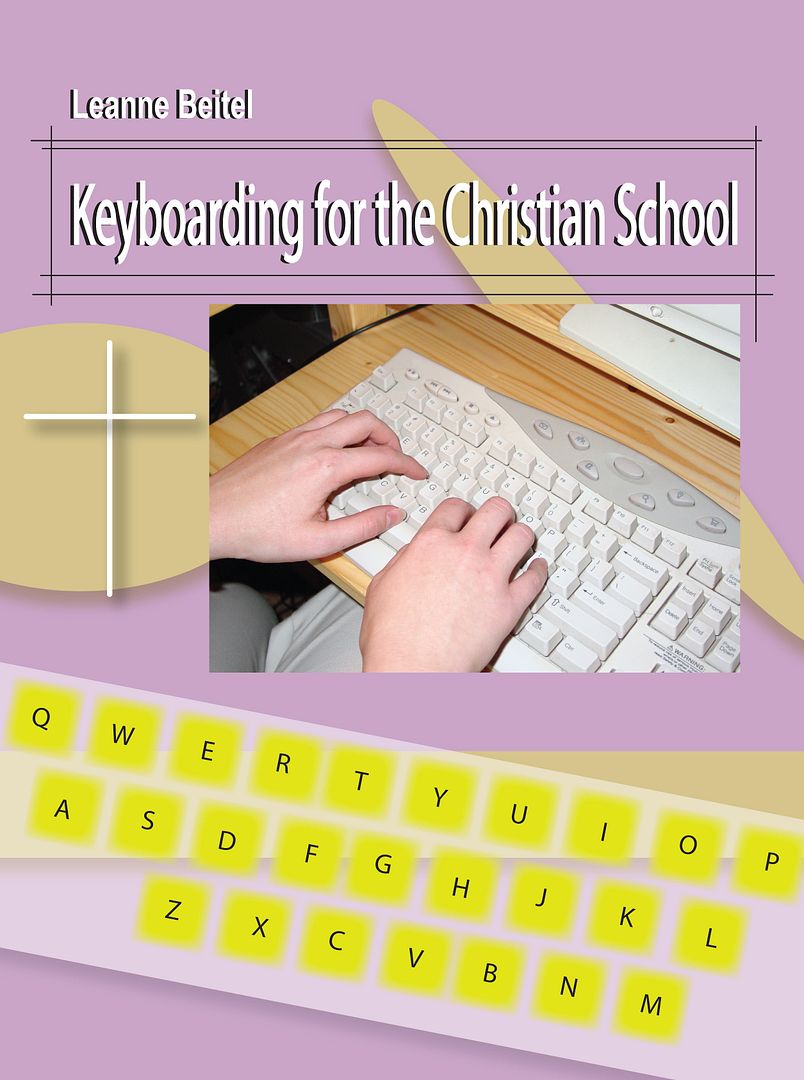
Christian Keyboarding

My kids love using the computer. They're great at using the mouse, and most of the time, it suites their needs. But . . . it's those times when they need to actually type something when they struggle. Click . . . click . . . click go the letters. Then, "Mommy, where's the Y?" . . . click. It is time-consuming for sure. 

That's why I was excited to review Christian Keyboarding. I know my kids are young (oldest is 6), but the more they're familiar with something, the easier it will be to learn. Let's face it, this is a very techy age. Kids need to know how to type. Somehow, when I was in school, I never took a typing class. Oh, it was required, and I have no idea how I missed out. Either way, I learned by typing up reports and such, but it took longer. If my kids can learn while they're still young though, it'll make it much easier for them.

 
Your kids are going to type something while they're typing, right? (I know, deep stuff here.) What better way to learn to type than using verses. Leanne Beitel created Christian Keyboarding by combining the elements needed to satisfy state education requirements and Biblical references (I can't endorse the version used) for the private school requirements.

The lessons are short. That's a big plus for my little ones. The first of the thirty-two lessons starts with learning two letters, f and j. In lesson two, they add two more letters and then review the first two. The lessons continue in this fashion until they've practice enough lessons to start forming words. By the end, they'll be typing full paragraphs. 


This curriculum offers two versions, elementary ($12.95) and secondary ($15.95.) These are both printable e-books. Instead of printing out each lesson though, we viewed them on the iPad and typed from there. It was easy to zoom in to make the font bigger for my 6-year-old. The format of the lessons is basic. In a good way. There are no pretty pictures to distract them, no dings or buzzers to validate the work. 

My son was very excited to learn to type. That excitement lasted too . . . for a few lessons. He realized that it was going to take work. It was going to be difficult. He was going to make mistakes. You see, my son is very much like his mother. (Shocking, I know.) We're perfectionists. If we're not good at something, we don't like doing it. It didn't matter how many times I praised him for how well he was doing or ensured him that it was ok to make mistakes, he became discouraged. I understand that his small hands don't like to stay spread properly across the keys. I know that his little fingers are still weak. And that's ok. Like I said in the beginning, the more familiar you are with something, the easier it will be to learn. 

I think this is a fantastic program. 
I think it will benefit my children greatly. 
I think we'll wait a bit before trying again.

Don't let that stop you from buying it though! From now until August 29, 2012, you can save 20% on your order using code SUMMER2012! Also, there are tons of free lessons on the site and resources to help you along the way.  

     
As always, you can read more reviews of Christian Keyboarding on the Crew blog.


* Disclaimer: I received this e-book in exchange for my honest review. All opinions are my own.
Pin It

Saturday, November 12, 2011

Keyboard Town Pals - Review

Keyboard Town PALS Learn to Type program claims to teach your child to type in one hour. The children proceed through the program at their own pace. There's no testing, no scoring, and no racing against the clock. Instead, the 8 (6-7 minute) videos tell a fun story to teach the students the placement of their fingers and the location of 30 letters and symbols.


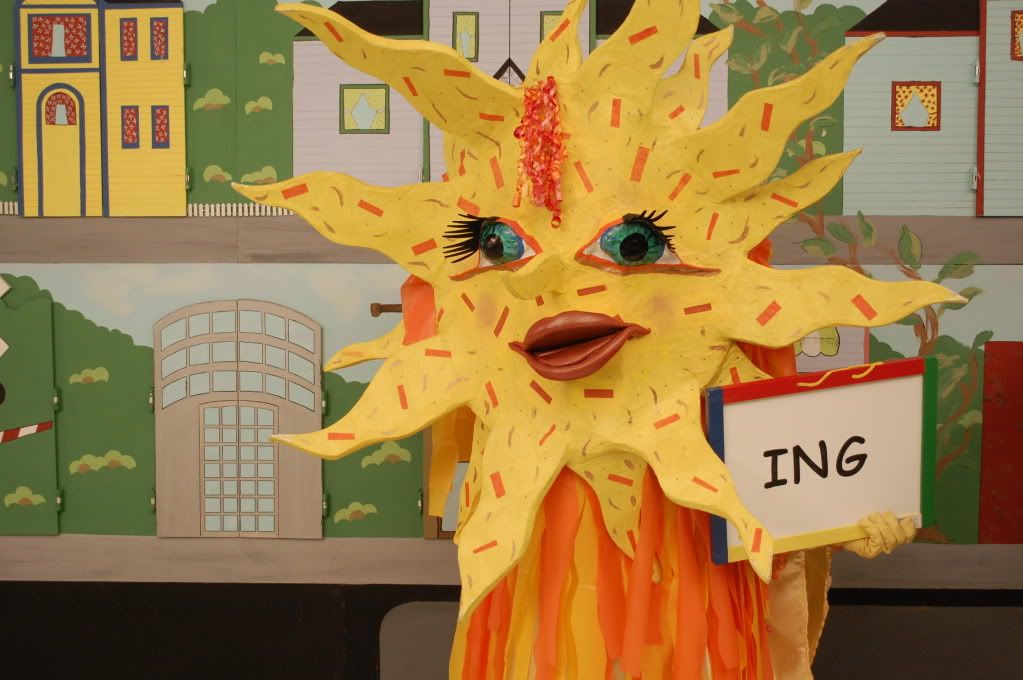
Jake (5) was very excited to learn to type. He had no experience with typing as everything he has done on the computer so far requires only the click of a mouse. As soon as Sunny, the guide, popped up on the screen, Jake had the biggest smile on his face. She is over-the-top silly.


Sunny introduces the student to the Keyboard Town Pals throughout the lessons. Each puppet pal is a letter or symbol on the keyboard. Most of the puppets are endearing. Some, not so much. One thing that I do not like is that the puppets or clues are not consistent. For instance, they ask "Are you still taking lessons?" for the letter R and visit puppet pal Emma for the letter M among a couple others. Sunny informs the student that they are sound clues not spelling clues, yet all the other puppets are spelling clues, like Amy and banana split for A and B respectively. It might not be a big deal to some, but the inconsistency bothers the perfectionist part of me. Or maybe it's my English major that cringes when it hears it. Another thing is that not even all the spelling clues are phonetically correct. For instance, they use George for the letter G. Technically, George starts with the J sound. My 5-year-old does not know how to spell George. If he sounded it out, he would spell it with a J. This could be confusing to him.

After a few lessons, Jake lost all interest in learning to type. It could be because his hands are a little too small to fit the keyboard and he had a hard time keeping them on the correct letters. Also, he was frustrated that he couldn't remember all the placements without looking at his hands. Twenty minutes in and he thought he should have been a pro. (I wonder where he gets that from???) Because the program is not interactive at all, it never let him know if he made a mistake. While I appreciate that the computer doesn't beep loudly or make him feel inadequate when a wrong key is pressed, I would like for it to let him know that he did indeed make a mistake.

Keyboard Town PALS is intended for kids ages 7-10. That could partly explain why it did not work well for my 5-year-old. It costs $39.95 for either a CD-ROM or a web-based package. The program is available in English, Spanish, and French.

To see what others had to say about it, go here


* I received a trial version in exchange for my honest review. All opinions are my own.


Pin It