Showing posts with label software. Show all posts

Wednesday, November 9, 2016

Fun-Time Phonics Review


I am a firm believer in making learning fun, especially in the early years. Many hands-on learning exercises and play-based learning are vital to little ones. I will incorporate some formal education though by following the cues of my children. One way that always grabs their attention is the use of electronic programs. The little ones feel it is a treat to use the computer to do their own school. Programs like Fun-Time Phonics!™ Software - 2-PCs Win Download from The Critical Thinking Co.™ are perfect for these times. It allows the child the privilege of using the computer, while learning in the process.

The Critical Thinking Co.™ has been "committed to developing students' critical thinking skills for better grades, higher test scores, and success in life" since 1958. Their award-winning products help students achieve better results through highly effective lessons that sharpen the mind. They teach reading, writing, mathematics, science, and history in a fun, easy-to-use way. Their methods aren't based on drill and rote memorization, but techniques that empower the mind to get the student to think. Michael Baker, the company's president said, "If we teach children everything we know, their knowledge is limited to ours. If we teach children to think, their knowledge is limitless." One of the reasons we homeschool is that we want our children to be able to think for themselves, to be able to problem solve to find a solution. It is our job to prepare them for life, not just memorize facts. We strive to give our kids the tools necessary to make clear, reasoned judgments. The programs from The Critical Thinking Co. are designed to do the same thing.  
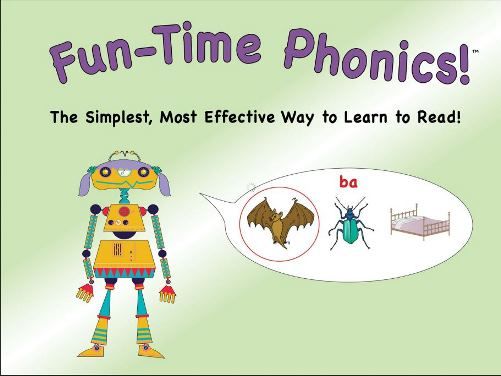

Fun-Time Phonics is a comprehensive reading program based on data from the National Reading Commission. Cute robots teach the lessons, guide the activities, and engage students through listening, thinking, speaking, and reading. The lessons portray that spoken words are comprised of individual sounds, and that those sounds are written with letters, through the emphasis  of sound/spelling patterns, vocabulary, and comprehension. 

The program is divided into 4 sections:
  • Section 1 -- This first section teaches that words are made up of sounds and focuses on beginning sounds, ending sounds, vowel sounds, and words that rhyme.
  • Section 2 -- This part teaches the short vowel sounds and the letters that make the sounds.
  • Section 3 -- These activities get the student to understand that different sounds are made based on the consonants and short vowel sounds that are used.
  • Section 4 --  This final area combines all the skills that have been taught, and the student learns to read his first words.


My 4-year-old has been the one using this program. He and I sit together at the computer and do the lessons together. The program explains the lessons in a fashion that a student could work on it on his own, but since my guy is at the very beginning stages, I prefer to be there with him for further explanation and encouragement. Each lesson starts with brief instructions and then many examples. For instance, the first lesson teaches the letter T and its sound. Then, there are 15 opportunities to choose the /t/ sound out of 3 choices. One of the robots articulately pronounces each picture word so the student can hear them. After the child clicks his choice, there is either positive reinforcement through clapping and cheering or simply a reply letting him know he picked an incorrect option.

The lessons are simple and short. The format is repetitive, and therefore, my little guy loses interest after a bit. I wish there were some different activities in the lessons. Also, when he gets an incorrect answer, it doesn't tell him which one was correct. It just tells him that he was wrong. I would like to see it do both. For example, the program says, "Pup does not rhyme with hop," and that's all. I wish it would say something like, "Pup does not rhyme with hop. Drop. Hop. Drop rhymes with hop."


It's really easy to move around through the program to find which lessons your child needs to practice. You just log into the admin section and choose the lesson. Otherwise, it will start you at the beginning and proceed through them on its own. You can also see your child's progress on each section and add more users.

All in all, I think the program is fine and a good job of teaching the aspects of reading. It's just not my favorite option. I really wish there was more variety. We'll still continue to use Fun-Time Phonics!™ Software - 2-PCs Win Download as a supplemental program at times, but I will not require it as part of our weekly schedule.


You can connect with The Critical Thinking Co.™ on the following social media sites:
Google+

The Crew was able to review many different products offered by The Critical Thinking Co.™. If you'd like to read more reviews of this program, other components of the Reading, Writing, and Arithmetic Before Kindergarten!™ program, or reviews of some physical books, please visit the Homeschool Review Crew blog.

Crew Disclaimer
Pin It

Friday, April 8, 2016

LEGO Stop Motion


LEGO. If ever there was a review that my kids immediately fell in love with and wanted to use all the time, you can be sure that there is LEGO involved. To say that our family is obsessed with LEGO may be an understatement, ha. Our newest hobby has been using the tens of thousands of tiny bricks that we own and transforming them into stop motion videos using the Stopmotion Explosion Animation Kit.

My husband has always been a fan of  claymation, and in turn all kinds of stop motion films. He played around with some LEGO stop motion using a simple app a while ago and piqued the kids' interests, too. He made a couple short clips and left it at that. All it took was this kit from Stopmotion Explosion to rekindle the stop motion excitement.


The kit includes everything you need to create your own stop motion videos.

  • Camera -- 720p resolution; Windows and OS X compatible; manual focus; full control of exposure, color, and white balance; tripod or table mount; fully-rotating head. 
  • Stopmotion Explosion Animate ANYTHING and Make MOVIES Book -- This 290+ page book contains everything you need to know to make amazing stop motion films. It has detailed step-by-step directions for screen writing, video editing, and audio recording. It gives tips on lighting, set design, composition, animation, securing objects, special effects, and more. 
  • StopMotion Explosion Software Disk -- The disc contains necessary files. The StopMotion Explosion software is used for capturing the images. Audacity is where you can complete the audio editing. There are also dozens of sound effects clips and extras.

We had gotten home very late the day our kit arrived. Normally, we would have put the kids to bed and shown them the contents of the package in the morning. Since we knew they would be thrilled to get it, we let them open it that night. (Ok, maybe my husband and I were just as excited as they were, ha.) There were squeals of delight. They couldn't wait to start playing around with the program.

My husband installed the software and made a quick test video to see exactly how this one works. Jake, our 10-year-old, wanted to start immediately, but we made him read the first few chapters of the book before starting, so he understood more. Of course, he flew through the beginning of the book and got busy creating his own stop motion film.

We had planned to borrow my mom's collapsible photography studio for the videos, but we hadn't expected the kit to arrive as quickly as it did and had not gotten the studio at that point. Jake didn't care about a distraction-free film and simply set up his scene on the kitchen table. As a result, his first video was dark and had the cord from the camera across all the images. I pointed that out to him and he made sure to watch out for it the next time. His first few videos were like that; I'd mention an aspect of his video that could be better, and he'd change it for the next time. 

He made this fishing video after a couple weeks of playing with the program.


He watches that video now and can point out things he'd like to do differently. For instance, the camera wasn't straight, which made the video tilted. Also, the scenes change quickly. When he added the audio after the pictures were created into the initial film, he realized he didn't have much time to say the things he wanted to.

There is much work involved in making a stop motion film. Not only do you have to take the pictures of the characters or objects in different positions, you have to make very small movements with them, otherwise, it moves too fast. Place your object (in our case, a mini fig), take a picture, move it slightly, take a picture, move it a little more, take another picture. It can almost get tedious. Jake's first few attempts were very fast-paced. He learned to make smaller movements and ultimately, better films. His fishing video is only 1 minute and 12 seconds long, yet there are 764 individual pictures that he took to make it.


There is much more to making a stop motion video than simply taking pictures after minuscule movements.

  1. Take pictures.  
  2. Export the pictures as a video file.
  3. Open the video in Windows Movie Maker (or another video editing program. This is what it recommended it the book, though we used a more recent version.)
  4. Record audio and add effects (credits, fade in & out, text, color balance, etc..) 
  5. Process the file to save as a video.

Jake was shown how to do each step one time. After that, he was able to set up everything on his own with no issues. Making stop motion videos has been a big deal at our house the past 6 weeks or so. And it wasn't just with Jake either. Oftentimes, all the kiddos would work together to create something or just to simply watch someone else work. Each of the other kids (8 yr, 6 yr, 4 yr) has made his own videos. The younger ones haven't added audio yet, but even our 4-year-old loves setting up a scene and taking pictures. 


One of the things we told the kids is that we would do a stop motion of building a set. Of course, we couldn't just take apart a set we already owned. This was a great opportunity to purchase a new one! My husband and I picked out the corner deli, for a few reasons. For one thing, it will work perfectly with some ideas we have for future films we're planning to make.

The kids helped their dad build the set, and then he added in the sound effects by himself. He put it together one night after the kids had gone to bed. The two of us laughed at the different option that are included with the software.

This is the final video:


Another product that Stopmotion Explosion sells is ModiBot Mo. This little guy was created to pose in a variety of ways, more like a human. The mini figs are great for LEGO-lovers, but sometimes you want a more flexible leading character. ModiBot Mo is a fun option for films. You can even purchase an accessory kit that includes a sidearm, field knife, rucksack, treadsoles, headphones, and a baseball cap.

Jake read about Mo in the book and decided to build his own modibot using, LEGO, of course. I was quite impressed with his creativity and the flexibility of his guys. He used some of the techniques found in the book for his fighting sequence. See if you can spot things like an uppercut, left hook, or roundhouse kick.

 
While this program is fantastic, there are a few things that we have been less-than-impressed with, and they all have to do with the camera. First of all, the clip is not strong and doesn't attach well to things. It easily wobbles if there is movement near it. Secondly, it's difficult to focus the camera. Because of the design, the dial does not turn easily, which makes it hard to keep the camera steady as you focus. Once the camera moves even just a tiny bit, you have to realign it to keep your video smooth. Another thing that was disappointing is that there are no keyboard shortcuts. Many programs will let you scroll through the pictures with the arrow keys along with some other options. While you technically can grab the pictures with the space bar, if you stop to check your live view, you have to re-click with the mouse. There were many times when someone thought they were taking pictures while pressing the space bar, only to find out nothing was done. The final thing that could be improved is that even though the camera says that it defaults to 720p (the highest setting on this camera), it's actually using a much lower quality. Each time you open the program, you have to manually change it to get the 720p. All of our first videos were taken at 480p, because we didn't realize it needed to be changed.

Stopmotion Explosion does sell a higher quality camera that looks like it fixes many of the things I mentioned.


Camera issues aside, this kit is amazing. The book is a phenomenal resource for stop motion. The information in it is completely thorough and gives some fascinating tips like how to make an explosion with cotton balls, what sticky notes can be used for, when to use a flashlight, how to make a character fly, and so much more. I'm so excited to see how my kids improve by implementing more of the guides found in the book and seeing how they incorporate the sound effects.

I asked the kiddos what they thought of Stopmotion Explosion.

"It was awesome!"

"The best thing in the world!" 

"It was really fun to do it!"


I have a feeling that stop motion has become part of our lives for good. I'm so thankful we received this animation kit.


You can connect with Stopmotion Explosion on the following social media sites:
Facebook
Twitter


If you'd like to see more reviews of this kit or watch some other fun stop motion videos, please visit the Schoolhouse Review Crew blog.

Crew Disclaimer
Pin It

Wednesday, August 27, 2014

UberSmart Math Facts


Math is one of those subjects where it's easy to see how it applies to everyday life. I can remember being in school and listening to my peers ask in various classes, "Why do I need to learn this? When am I ever going to use this?" Math is not like that. Ok, maybe some math is not super essential to daily life--I cannot remember the last time I used the calculus knowledge I learned in high school--but regardless, math as a whole is vital to know. Whether you're doing something as simple as shopping at the store or following a recipe or doing something more difficult like a career in engineering or as a computer programmer, you're using math. My kids enjoy math, as far as using it to accomplish something, and they're very good at it. They're not overly thrilled with sitting and performing math equations though. Since we hadn't drilled simple math facts in a while, I noticed that their response times had lengthened. I was please to receive a program from UberSmart Software to review.

UberSmart Math Facts is a Windows-based (XP, Vista, 7, and 8) downloadable software program that helps teach and review basic addition, subtraction, multiplication, and division facts. The idea came about when David Kocur began looking for a flash card program for his kids. After searching, downloading, and reviewing dozens of programs for hours, he couldn't find one that he truly liked. It was then that he started to write his own, and UberSmart Math Facts was born. It worked so well with his own daughters that he decided to offer it to other families as well.

The program teaches math skills using dot cards, flash cards, and keyboard entry. Addition and subtraction facts are reviewed through the 9s family, while multiplication and division are practiced through the 20s. 


As soon as you download the software, you are able to make profiles for up to 8 students. I used this with Jake (8) and Alyssa (6). The each know how to get to their own profiles and can pick up practicing where they left off without any help from me. I can easily customize it to fit their needs. There are sections labeled Learn, Practice, Test, and Compete for the students. 

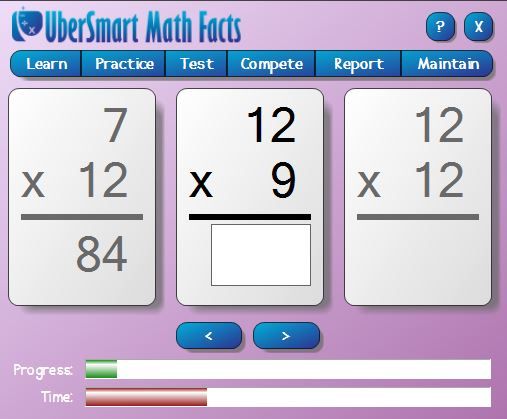
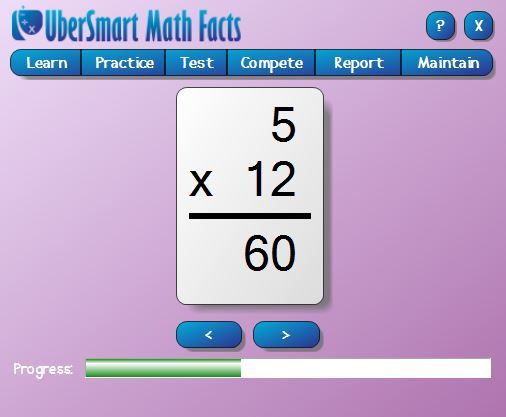
In the Learn section, the student receives an equation (dot cards for beginners or flash cards for intermediates) on the screen and can answer it, either audibly or mentally, before clicking the show button to display the correct answer on cards. This option gives the student the ability to learn the facts without the pressure of answering correctly and finding the numbers on the keyboard within a given time. This is Alyssa's preferred way of practicing.     

The Practice tab has 3 options: dot cards, keyboard entry, and flash cards. Here, the student can practice finding the correct answer by clicking the correct card to answer the problem (dot card), typing in the given number (keyboard entry), or typing the answer to the equation (flash card). This is a timed section. If the student does not answer correctly within the proper time, the answer will show on the screen. 

The Test option is Jake's favorite. After learning and practicing, the student is given the opportunity to showcase what he knows. It is much like the practice part, except once all the problems of an operation and family are answered correctly in a round, it is marked as mastered. Jake loves working hard to master the individual families. Seeing that Mastered! acknowledgement gives him a sense of pride.

The Compete section allows the student to test their skills against other users around the world. You can choose who is competing: elementary, middle school, high school, or adult. When the series of questions on the flash cards is completed, the score and rank is shown on the screen.

 
The final two tabs, Report and Maintain, are for the parent/teacher. This is where I can see each child's progress or adjust things accordingly. For instance, for Alyssa, I've changed her seconds per problem from the suggested 4 seconds to 6 seconds because she was getting too frustrated if she couldn't answer in the appropriate time. She's my little perfectionist. It was too-overwhelming to her to get the problems wrong because she was running out of time to remember the answer, find the numbers on the keyboard, and enter them all before the 4 seconds were up and the answer was displayed on the screen. Once she'd get 1 or 2 wrong, she'd lose interest and focus. Once she becomes more familiar with it, I will change it back to the 4 seconds to increase her response time. For now, I love having the option to adjust it according to our needs. She's currently working on her addition skills, whereas Jake has mastered all the subtraction families and is working his way through multiplication mastering those as well. 

When we first started using this program, Jake, especially, was a little intimidated because he thought it would be too difficult to learn (or in many cases recall) the facts. Like I said in the beginning, his response time had slowed down drastically. Almost immediately though, even he saw major improvements in his skills. Having instant results drove him to try even harder to succeed. They each practice their facts for about 10 minutes a day 4 days a week. I've been very pleased with what they are learning and remembering. The program is not a flashy, fun game, but a program that is right-to-the-point and streamlined. Most importantly, it's a program that works. 

 
UberSmart Math Facts costs $24.95 and is available for instant download. It's recommended for grades K-6, but can easily be used for anyone wanting to brush-up on their math facts. The software license can be used on all the computers in the home and for up to 8 users. 

Personally, I'm glad to have this program for my family to use.


If you'd like to see how other families used this program, head to the Schoolhouse Review Crew blog to read more reviews.


Crew Disclaimer
Pin It